Anton had done the whole list. WebP, compression, every lazy-load plugin he could find, caches cleared, the hero image excluded by class name.
His desktop LCP was 1.1 seconds. Mobile was 4.6. He posted the results on the LiteSpeed support forum in October 2025:
Despite all this, the hero image on mobile still loads too late and delays the visual render.
rodnoi, WordPress.org support forums, October 2025
Three different jobs get called image optimization. Compression is the one everybody does, and on most sites it is the smallest of the three.
So we uploaded one camera photo to a clean WordPress install and measured all of it. Every number below is ours.
The short version
| One upload, eleven files | An 8.3 MB photo became 10.45 MB across eleven files. The biggest one is the untouched original, and nothing on the site ever serves it. |
| WordPress converts nothing | Version 7.1.3 produced zero WebP files from a JPEG upload. It accepts WebP and AVIF, and it converts neither. |
| WebP saves 41%, not 30% | Against the JPEG WordPress itself wrote, at matched quality. Against a properly made JPEG it saves 22%, because core’s encoder is leaving 21% on the table first. |
| One attribute saves 43% more | Core tells the browser each image fills the viewport. It does not. Correcting that one string cut desktop image bytes by 43%. |
| Core’s lazy loading is already right | The first image gets fetchpriority="high", images two and three load normally, and lazy starts at the fourth. |
| A builder can undo that | Elementor writes every loading attribute twice and switches core’s logic off to do it. Ten million installs. |
| A lazy hero costs 1.16 s | Same bytes, same picture. LCP went from 1.972 s to 3.132 s on our throttled mobile profile. |
What one upload actually costs
Our test file is an ordinary landscape photograph, 4608 by 2592 pixels, 8.31 MB. That is what a phone or a camera hands you.
We dropped it into the media library of a WordPress 7.1.3 install running WooCommerce and twelve plugins. Then we counted the files on disk.
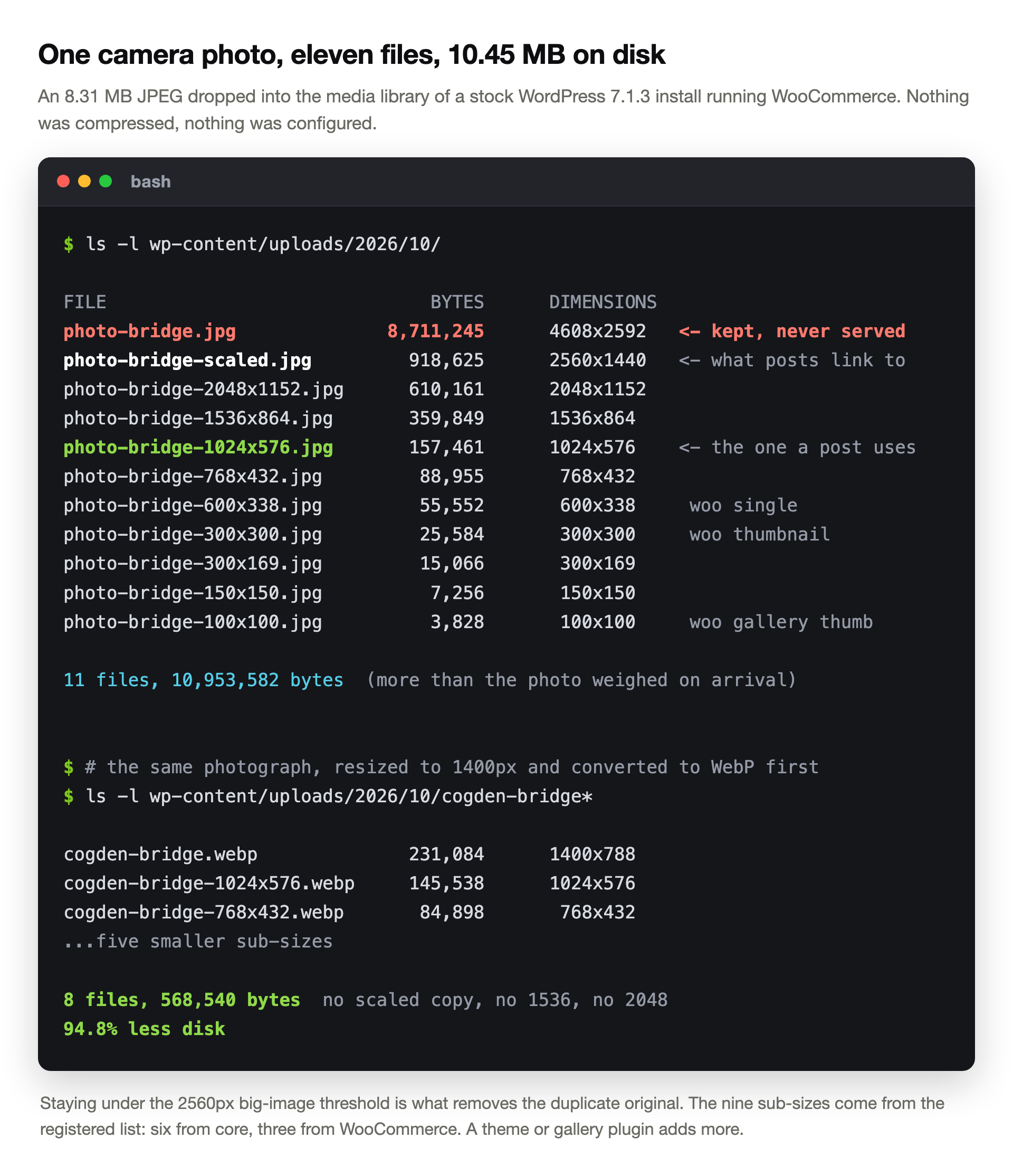
Eleven files. 10.45 MB, which is more than the photo weighed when it arrived.
Two of those deserve a look. The 8.7 MB original stays on disk forever and no page ever links to it.
It survives because the upload crossed big_image_size_threshold, which is 2560 pixels. Core made a 2560-wide copy, pointed the library at that, and kept the original beside it.
Nine sub-sizes came from the registered list: six from core, three from WooCommerce. A theme or gallery plugin adds more, and the count is theirs, not WordPress’s.
Then we prepared the same photograph the way it should arrive. Resized to 1400 pixels, converted to WebP, nothing else.
That upload produced eight files and 0.54 MB. No scaled copy, no 1536 or 2048 variant, because the file was already under both thresholds.
94.8% less disk, from a decision taken before the file ever reached the site. Neither run used a plugin.
Three jobs, not one
Keeping these three separate is most of the work. They have different causes and different fixes, and none of them substitutes for another.
Job 1, the bytes inside the file
Format and compression
Choosing WebP or AVIF over JPEG, and picking a quality. This is the part every guide covers and every plugin sells.
Worth 22% to 41% on a photograph, measured below. Real, and finite.
Job 2, which file the browser asks for
Dimensions and the sizes attribute
A 1024-pixel file in a 645-pixel slot wastes bytes no encoder can win back. This is where most of the waste on a WordPress site actually sits.
Worth another 43% on desktop, and nothing on a phone. The reason why is further down.
Job 3, when the browser asks
Loading order
Lazy loading, fetchpriority and explicit dimensions. None of this changes a single byte.
It changes when the visitor sees the page. Google measures exactly that, and getting it wrong cost us 1.16 seconds.
Anton’s thread is job three misdiagnosed as job one. He kept compressing a file that was already small enough.
How we measured
One local WordPress 7.1.3 install, PHP 8.2.29, GD compiled with both WebP and AVIF support. Twenty Twenty-Five as the theme.
Four freely licensed landscape photographs from Wikimedia Commons, each between 7.5 and 8.7 MB, stood in for client uploads.
Byte comparisons use SSIM against a lossless reference. So the formats meet at the same measured quality, not at the same quality number. That distinction turns out to matter a great deal.
Timings come from headless Chrome 155. Viewport 412 by 915 at 2x density, four times CPU throttling, a 1.6 Mbps link, 150 ms of latency. Cache cleared every run, median of five.
It is a local install, so treat the milliseconds as relative. The shape of each result carries over to a real server.
WebP and AVIF: what they actually save
Nearly every guide quotes the same pair of numbers. WebP is about 30% smaller than JPEG, AVIF about 50%.
We found no dataset behind either one. So we measured our four photographs at a matched SSIM of 0.98.
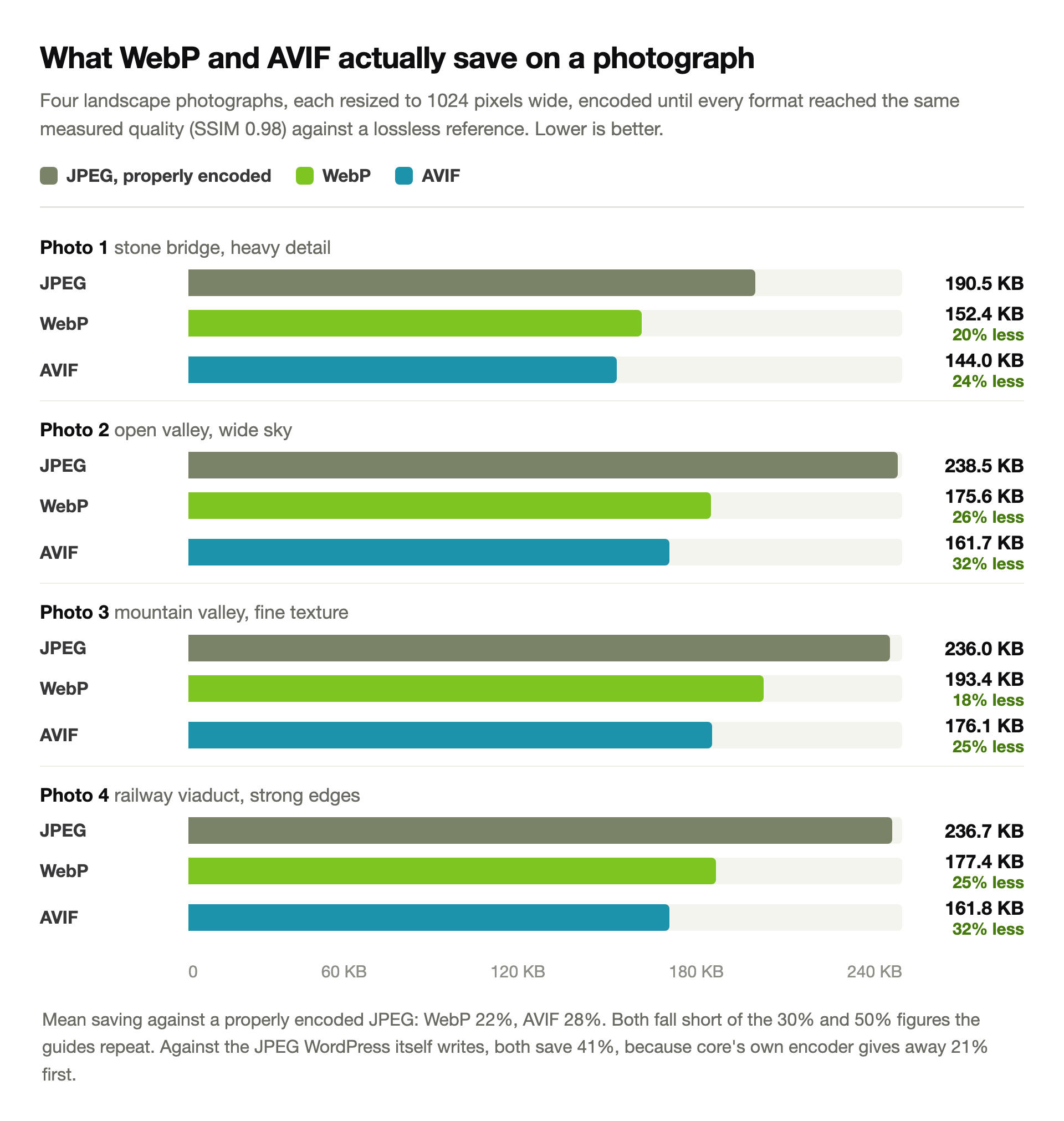
WebP saved 22% on average. AVIF saved 28%. Both are real, and both are well short of the figures in circulation.
One caveat we owe AVIF. SSIM punishes the fine-detail smoothing that AVIF does deliberately, so its true advantage is probably larger than 28%.
Then we ran the same comparison against the JPEG that WordPress itself had written, and the answer changed.
Half the WebP saving is WordPress’s JPEG encoder
Core had generated a 1024-pixel JPEG from our photograph at 157,461 bytes. We measured its quality, then asked each format what it needed to match it.
| The same picture, the same measured quality | Bytes | Against core |
|---|---|---|
| WordPress JPEG, GD at quality 82 | 157,461 | baseline |
| JPEG again, properly encoded | 124,003 | -21% |
| WebP | 93,074 | -41% |
| AVIF | 93,230 | -41% |
Read the second row again. That is still a JPEG, at the same visible quality, 21% smaller.
GD writes baseline JPEGs with default Huffman tables and no progressive pass. A modern encoder beats it without changing format at all.
A plugin reporting a 40% saving after the switch earned about half of it by replacing core’s encoder. The format did the rest. The 768-pixel size behaved identically, at 88,955 bytes down to 52,584.
Quality 82 is not one quality
Core hands every encoder the same number. The wp_editor_set_quality default is 82 for JPEG, for WebP and for AVIF alike.
Three encoders, one dial position, three different results. We put the same photograph through each and measured both sides.
| Output at quality 82, same photo, 1024px | Bytes | SSIM |
|---|---|---|
| AVIF, the official plugin’s default | 184,693 | 0.97521 |
| JPEG, no plugin at all | 154,336 | 0.94195 |
| WebP, plugin set to WebP | 132,678 | 0.95501 |
AVIF at 82 came out 20% larger than the JPEG it replaced. It is also visibly better, which is the whole explanation.
GD’s AVIF encoder reads 82 as a much higher fidelity target than its JPEG encoder does. Nobody is wrong, and the file still got bigger.
WebP at the same setting is the clean win. It is 14% smaller than the JPEG, and better quality too. Across the whole sub-size set it came to 1.06 MB against JPEG’s 1.25 MB and AVIF’s 1.49 MB.
Screenshots and charts are the exception
Everything above concerns photographs. Flat colour and sharp text behave differently, and the usual advice inverts.
We took a wp-admin screenshot, scaled it to 1024 pixels wide, and ran the same measurement.
| A screenshot at 1024px | Bytes | SSIM | vs PNG |
|---|---|---|---|
| PNG, optimised | 125,502 | 1.00000 | baseline |
| WebP, lossless | 53,126 | 1.00000 | -58% |
| JPEG at quality 82 | 49,722 | 0.99185 | -60% |
| WebP at quality 82 | 32,018 | 0.99589 | -74% |
| AVIF lossless | 161,478 | 1.00000 | +29% |
Lossless WebP is pixel-for-pixel identical to the PNG and 58% smaller. For a screenshot of code or an admin table, that is the honest default.
Lossy WebP goes further still, and the text starts to fuzz where a reader will notice. Lossless AVIF is a trap: 29% larger than the PNG it replaces.
Our own figures on this site ship as lossless WebP for exactly this reason.
WordPress does not convert anything by itself
This catches people out, and the confusion is reasonable. WordPress 5.8 added WebP support and 6.5 added AVIF, so core handles both.
Supported means it will accept the upload and generate sub-sizes from it. Our JPEG upload produced zero WebP files, because core converts nothing.
The hook that would do it, image_editor_output_format, ships empty. Something has to fill it, and that something is a plugin or your host.
Which leads to the question everybody asks before installing one. Somebody put it plainly on Reddit in March:
If I want to use a third-party plugin to convert the images from my site to WebP format, do these utilities also rewrite the paths/links to these images in WordPress?
u/otb-it, r/Wordpress, March 2026
We installed the official answer to find out. Modern Image Formats comes from the WordPress performance team and runs on about 100,000 sites.
It replaces the sub-sizes rather than adding to them. After a JPEG upload, every file the site serves was AVIF, and the attachment metadata pointed straight at them.
So yes, it rewrites the paths, and no rewrite rule or .htaccess block comes into it. WordPress simply records different filenames.
Two details are worth knowing before you switch it on. The first is that its default is AVIF, which is the 20% larger output from the table above.
The second is that there is no JPEG left to fall back to. Only the untouched original stays, and nothing links to it.
In 2026 that matters less than it sounds. WebP support sits at 97.2% of browsers and AVIF at 96.4%. A <picture> element with a JPEG fallback is mostly ceremony now.
The other approach converts before uploading, which is what our 0.54 MB run did. It costs a step in your workflow and removes a plugin from the stack.
Bulk-converting a library that already exists is the genuinely risky version. Somebody tried it on 1,900 images:
I find it to be slow, and it fails before it converted everything, and has failed to update file paths properly. So the site is filled with broken image markers.
u/Euphoric_Ad_9136, r/Wordpress, February 2025
Back up the uploads folder and the database together before any bulk run. A half-finished conversion is the one failure here that shows on the page.
The attribute almost nobody mentions
WordPress has served responsive images since 4.4. Every content image carries a srcset listing each available width, and the browser picks one.
Almost everyone stops there, including the guides. But the browser needs to know how wide the image will appear. That takes a second attribute.
Core wrote this for our photograph, exactly as the page served it:
// what WordPress put on the page
sizes="(max-width: 1024px) 100vw, 1024px"

// what it means: this image is as wide as the window,
// until the window passes 1024px, after which it is 1024px wide

// what the image actually did, measured in the browser
desktop at any width ....... 645 px
a 412 px phone ............. 352 px
The attribute is not describing the image. It is describing a guess, and the official documentation says so plainly. The default is (max-width: {{image-width}}px) 100vw, {{image-width}}px, and themes should correct it through wp_calculate_image_sizes.
Most themes never do. So we measured the cost, then rewrote the one string to describe the real column and measured again.
| Viewport | Core’s sizes | Bytes | Corrected sizes | Bytes | Change |
|---|---|---|---|---|---|
| 412 px at 2x | 1024w file | 154.1 KB | 1024w file | 154.1 KB | same |
| 412 px at 3x | 1536w file | 351.7 KB | 1536w file | 351.7 KB | same |
| 768 px at 2x | 1536w file | 351.7 KB | 1536w file | 351.7 KB | same |
| 1280 px at 1x | 1024w file | 154.1 KB | 768w file | 87.2 KB | -43% |
| 1440 px at 1x | 1024w file | 154.1 KB | 768w file | 87.2 KB | -43% |
| 1680 px at 2x | 2048w file | 596.2 KB | 1536w file | 351.7 KB | -41% |
Desktop visitors stopped downloading 43% of the image bytes. Same picture, same quality, same files already on the server.
Now look at the top three rows, because the honesty is there. Nothing changed on a phone.
On a 412-pixel screen the image genuinely does span the column, so the first clause was already true. A three-times density screen then wants about 1,056 pixels for a 352-pixel slot. It is right to want them.
Which is the uncomfortable part of mobile performance. High-density phones are expensive by design, and no attribute fixes that.
It also explains a question that comes up constantly. Somebody asked it on Reddit last August, and the assumption inside it is the common one:
I’ve read how WordPress automatically inserts the smaller thumbnail version of your images from the Media Libary when people are viewing on a smaller mobile screen, so I just use one image, scaled for desktop, as the default for all screen sizes.
u/CrispyBananaPeel, r/Wordpress, August 2025
Half right. WordPress does offer the browser smaller versions, and the browser does choose. What it chooses depends on an attribute the theme should have set.
Two more things to know about srcset. Core adds neither attribute to markup that already carries one, so hand-written tags keep whatever you gave them. And max_srcset_image_width caps candidates at 2048 pixels by default.
Lazy loading: core already does this right
The forum is full of reports that WordPress lazy-loads the hero image. We put eight images in one post, switched every plugin off, and read what core emitted.
// eight images down one page, WordPress 7.1.3, no plugins
image 1   fetchpriority="high"   decoding="async"
image 2                            decoding="async"
image 3                            decoding="async"
image 4   loading="lazy"       decoding="async"
image 5   loading="lazy"       decoding="async"
image 6   loading="lazy"       decoding="async"
image 7   loading="lazy"       decoding="async"
image 8   loading="lazy"       decoding="async"
That is correct behaviour, and no accident. wp_omit_loading_attr_threshold defaults to 3, so core skips the first three images and starts lazy loading at the fourth.
The first one also gets fetchpriority="high", because core guesses it is the largest thing the visitor will see. On our page the guess was right.
One more detail, added in WordPress 6.7. Lazy images get sizes="auto, ..." prepended, which lets the browser use the measured layout width instead of the guess.
That only works on lazy images, and the core dev note explains why. An eager image has no layout yet. A supporting browser would reject the value and fall back to 100vw.
So the images core lazy-loads get the sizing problem solved for free. The hero, which is the one that matters, does not.
Then a page builder takes it over
Our demo runs Elementor, and the same page looked different with it switched on. The attributes were there twice.
// the same first image, Elementor active
<img fetchpriority="high" fetchpriority="high" decoding="async" ...>

// and the fourth
<img loading="lazy" loading="lazy" decoding="async" ...>
The plugin’s image-loading module switches core’s logic off. Then it reimplements the same decisions and writes its own attribute in front of the old one.
Two lines in its constructor do the first part. One disables core’s lazy loading outright, the other stops core’s fetchpriority logic.
The duplicate comes from the next step, which prepends rather than replaces. Browsers read the first attribute and ignore the rest, so the behaviour stays right while the markup goes wrong.
We checked this on the shipped 3.21.0 and again after updating to 4.3.5, released four days before we tested. Both do it, on about ten million active installs.
Nothing here is breaking a site. It is worth knowing, though. Core’s defaults are not what your pages use, and tuning the wrong layer wastes an afternoon.
Anton’s thread shows the same pattern from the other side. His cache plugin lazy-loaded a hero its own settings told it to skip, and the support volunteer said so:
I see the hero image being lazyloaded by LSC which should not happen if VPI images are correctly set.
litetim, plugin support, WordPress.org support forums
Read the markup before you read any settings screen. The page tells you what is happening. The checkbox only tells you what somebody intended.
What a lazy hero costs, in seconds
Everybody says not to lazy-load the hero. Of twelve current guides we read, one put a number on it.
So we built four versions of one page. Identical image, identical bytes, only the loading hints differ.
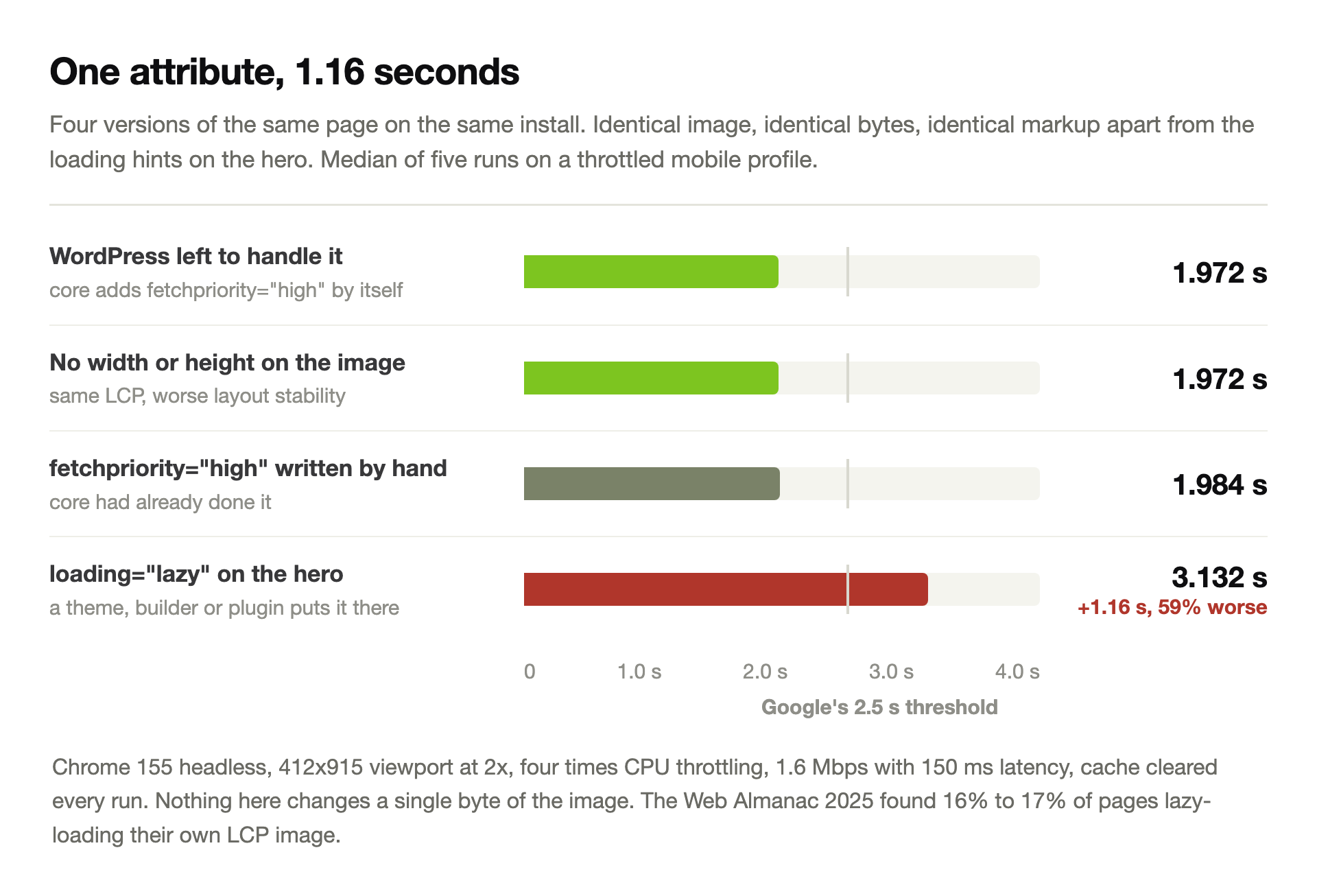
One attribute cost 1.16 seconds, a 59% worse LCP, and saved nothing at all. The browser had been told to wait for a file it needed immediately.
Writing fetchpriority="high" ourselves made no difference, at 1.984 seconds against core’s 1.972. Core had already done it.
That is the whole lesson of this section. On a plain WordPress install there is nothing to fix here, and the work is finding whatever overrode it.
It is also not rare. The Web Almanac 2025 found 16% to 17% of pages lazy-loading their own LCP image. That share has not moved since 2024.
The same chapter explains why images deserve this attention at all. They are the LCP element on 76.0% of mobile pages and 85.3% of desktop ones.
And the format picture is still mostly old. Among LCP images, JPEG holds 57% and WebP 11%, with AVIF at 0.7%.
Width and height: real, and smaller than advertised
Missing dimensions are the standard fourth item on every checklist. The browser does not know how much space to reserve, so the text jumps when the image arrives.
We measured it both ways rather than repeating it. One page, five images, text between them, lazy from the second.
Width and height on every image
- CLS 0.005 across five runs
- Single-image version: CLS 0.003
- Comfortably inside Google’s 0.1 threshold
No width or height anywhere
- CLS 0.020, about four times worse
- Single-image version: CLS 0.043, fourteen times worse
- Still inside the 0.1 threshold on this layout
- LCP did not move either way
Both numbers pass. We report that because the advice usually arrives as an emergency. On a simple article layout it is not one.
Add the attributes anyway. They cost nothing and WordPress writes them for you. A heavier layout with ads or embeds punishes their absence far harder than ours did.
It is common, too. Web Almanac 2025 found at least one unsized image on 62% of mobile pages.
Images are one cause among several. Rule the others out before you spend a week here. We covered the nine things that actually make a page feel slow separately.
What twelve guides leave out
Before writing this we read twelve guides to WordPress image optimization, all published within the last two years. We set aside two more for age.
We scored each against the things we had just measured.
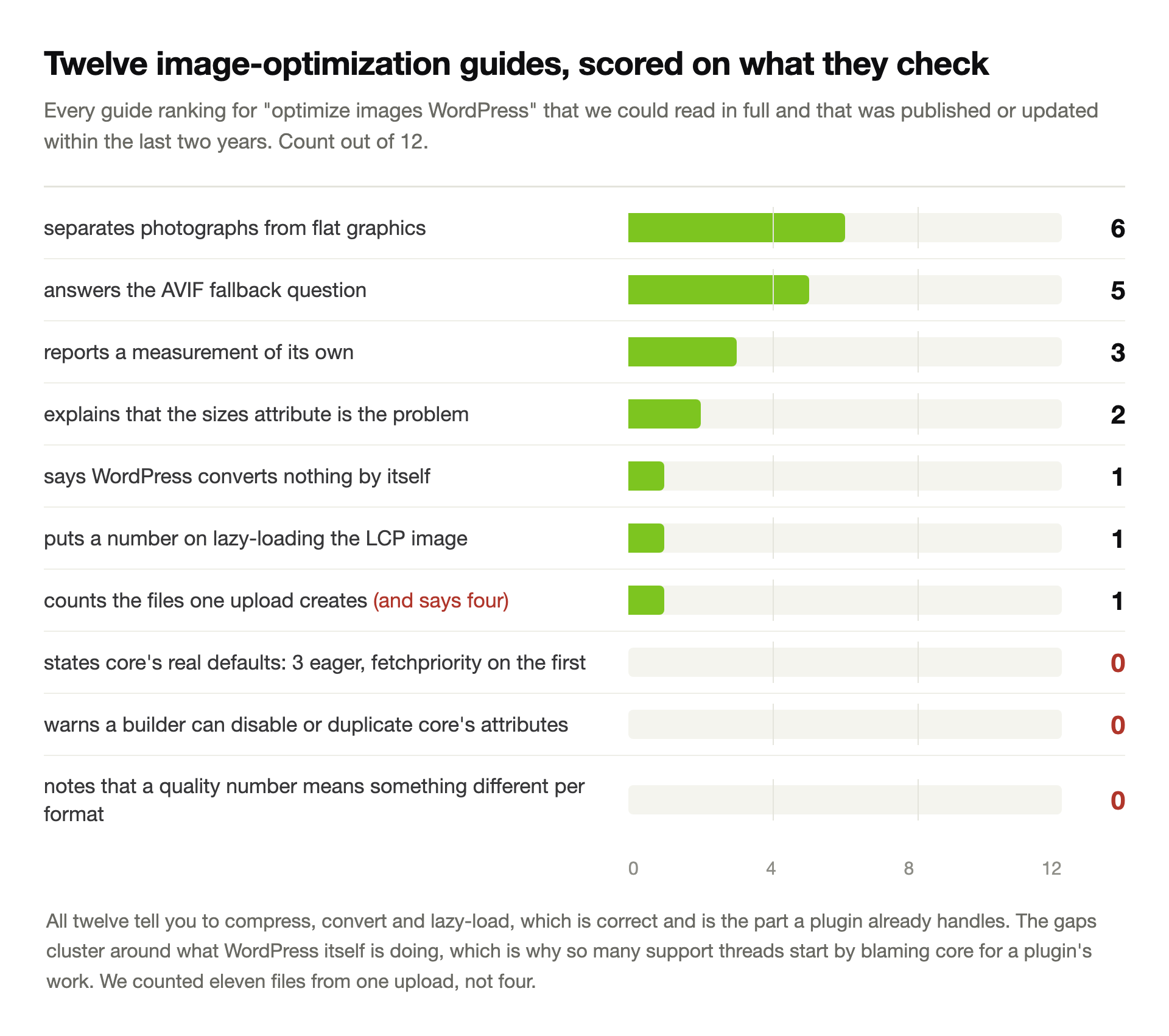
Every one of them tells you to compress, convert and lazy-load. That advice is right. A plugin already does that part for you.
The gaps cluster around what WordPress itself is doing. Nobody states core’s real defaults, which is why so many threads start by blaming core for a plugin’s work.
One guide counts the files from a single upload, and says four. We counted eleven on a stock WooCommerce install.
Two deserve naming. Erdo Plugins explains the sizes problem properly and audits a real grid, 870 KB down to 228 KB.
OptiWave is the only one of the twelve to put a figure on a lazy hero: 1,500 milliseconds. Our 1,160 sits in the same territory.
TinyBit wrote the clearest explanation of the sizes attribute we found anywhere. It is from 2022, which is why it sits outside the scored set, and it has aged perfectly.
The order to work in
Roughly in order of what it returns. The first two are free and most people skip straight past them.
1
Read the image tag before changing anything
View source and find your hero image. If it carries loading="lazy", you have found your problem and it is not a compression problem. A duplicated attribute tells you which plugin to look at.
2
Measure the painted width, not the file width
Right-click the image, inspect it, and read the rendered size. Ours was 645 pixels inside a 1024-pixel file. That gap is the ceiling on everything else you might do.
3
Fix the sizes attribute for your layout
Filter wp_calculate_image_sizes with a value that matches your real content column. One string, 43% fewer desktop image bytes, nothing to install.
4
Resize and convert before uploading
Pick the widest slot anything is ever drawn in, add a little headroom, and export WebP at that width. Our 1400-pixel WebP cut disk use by 94.8% and removed four files per image.
5
For an existing library, convert on the server
Modern Image Formats handles new uploads cleanly. Drop its quality if your uploads folder grows. Back up files and database together before any bulk run over old media.
6
Stop registering sizes nothing uses
Check what your theme and plugins have added. Nine sub-sizes came as standard on our install. A filter on intermediate_image_sizes_advanced drops the ones no template asks for.
7
Leave core’s loading attributes alone
First image eager and prioritised, lazy from the fourth. If that is not what your pages emit, find what changed it rather than adding another plugin on top.
8
Keep width and height on everything
Small effect on a clean layout, larger on a busy one, and free either way. WordPress writes both for you unless something strips them.
Step one is the one that saves the most time. Anton had tried five plugins before anyone read his markup.
Images still the heaviest thing on your pages?
We read the markup first. Then we measure what the browser downloads at each screen size, and fix the sizing before the format. You get the numbers before and after, not a plugin recommendation.
See how we speed up a siteTwo things we would not claim
The 30% and 50% figures for WebP and AVIF appear in almost every guide. Ours carried them too, until we went looking for the source. There is no dataset behind either.
Our measurement puts WebP at 22% and AVIF at 28% against a properly made JPEG. Against the one WordPress writes, 41%. Which number is true depends on what you compare against, and the guides never say.
The second is about SSIM. It is a proxy for human vision, and an unkind one to AVIF. Treat our AVIF figures as a floor, not a verdict.
Everything here also comes from one local install. The ratios travel; the milliseconds do not.
Questions people ask us
Does WordPress convert images to WebP automatically?
No. WordPress accepts WebP uploads and generates sub-sizes from them, but it never converts a JPEG or PNG you upload. Our WordPress 7.1.3 install produced zero WebP files from a JPEG.
A plugin or your host has to do it. The official option is Modern Image Formats, from the WordPress performance team. Its current default output is AVIF, not WebP.
How much smaller is WebP than JPEG, really?
It depends on which JPEG. Against the JPEG WordPress itself writes, at matched quality, we measured 41% smaller. Against a properly encoded JPEG it was 22%.
The difference is core’s encoder. GD writes baseline JPEGs with default tables. A modern encoder beats it by 21% without changing format.
Should I use AVIF instead of WebP in 2026?
Support is no longer the question, at 96.4% of browsers against WebP’s 97.2%. The catch is the quality setting, because the same number means something different to each encoder.
At quality 82 our AVIF files came out 20% larger than the JPEGs they replaced, at visibly better quality. Lower the quality and AVIF wins; accept the default and your uploads folder grows.
What size should I upload images at?
Find the widest slot the image is ever drawn in, then add some headroom for high-density screens. Our content column painted at 645 pixels, so a 1400-pixel file covers it comfortably.
Staying under 2560 pixels also keeps WordPress from saving a second copy of the original. That alone removed three files per image on our test.
Why does PageSpeed still say “properly size images” after I compressed everything?
Because compression and sizing are different problems. The warning is about pixel dimensions, so a perfectly compressed 1024-pixel file in a 645-pixel slot still triggers it.
The usual cause is the sizes attribute, which tells the browser each image fills the window. Correcting it for our layout cut desktop image bytes by 43% with no new files.
Is my hero image being lazy loaded by WordPress?
Not by core. WordPress leaves the first three content images alone and puts fetchpriority="high" on the first. We confirmed that on an eight-image page with every plugin switched off.
If your hero carries loading="lazy", a theme, builder or optimisation plugin put it there. On our demo, lazy-loading that one image cost 1.16 seconds of LCP and saved no bytes.
Will a WebP plugin break my existing image links?
A clean conversion rewrites the attachment metadata, so WordPress serves the new filenames with no rewrite rules involved. New uploads handled this way came out fine on our install.
Bulk-converting an existing library is where people get hurt, usually when a run stops half way. Back up the uploads folder and the database together first. Then check a few posts before trusting the whole run.
Do missing width and height attributes really hurt my score?
Less than the checklists suggest, at least on a simple layout. Removing them took our five-image page from CLS 0.005 to 0.020, and both pass Google’s 0.1 threshold.
Keep them anyway. They are free and WordPress adds them for you. A page with ads or embeds above the image shifts far more than ours did.