You clicked update. Maybe you clicked it, maybe WordPress did it at three in the morning while you slept. Either way the site is now a grey box that says “There has been a critical error on this website”, the dashboard will not open, and the page you are reading this on is probably the fourth tab you have opened in the last ten minutes. Take the panic down a notch. Almost nothing is lost. Your posts, pages, products and media are sitting in the database exactly where they were, untouched by whatever just failed.
What follows is the order we work in when a client calls with this. Get the site visible again first, work out what broke second, and make the next update boring third. Most of it takes one command or one rename.
The short version
| Fastest fix | Rename the folder of the plugin you just updated, in wp-content/plugins/, using your host’s file manager or SFTP. The site comes back within seconds. |
| Don’t know which one? | Rename the whole plugins folder, confirm the site loads, rename it back, then reactivate plugins one at a time. |
| Find the culprit | Read wp-content/debug.log, or the error log in your hosting panel. The fatal error names the exact file, and the folder in that path is the plugin. |
| Check your email | WordPress emails the site admin a recovery mode link after a fatal error. That link gets you into the dashboard with the broken plugin paused. |
| Stuck on “briefly unavailable” | Delete the .maintenance file in your WordPress root. The update crashed before it could clean up. |
| Don’t do this | Do not reinstall WordPress, do not delete wp-content, and do not restore a month-old backup over a site that has taken orders since. |
| Need it handled | Hand it to an engineer and get a free assessment before anyone touches the site. |
Get the site back up first, diagnose second
There is a strong temptation to work out what happened before you touch anything. Resist it. Every minute the site is down is a minute of lost orders, bounced visitors and, if you are unlucky, a support inbox filling with screenshots. Restoring service and finding the cause are two separate jobs, and they are much easier when you do them in that order.
This is what someone in the middle of it sounds like. From the WordPress.org support forums:
I just updated a few plugins on my WordPress site this morning, and now the entire site is down with the “There has been a critical error on this website” message. I can’t even access the wp-admin dashboard. It just shows the same error screen.
mikehoeen, WordPress.org support forum
That thread, for what it is worth, ended without a documented fix. The poster never said which plugins they had updated, and nobody could guess it for them. Which is the whole lesson: the information you need is already on your server, and five minutes of reading beats an hour of guessing.
Here is the sequence. You need access to your files, either through your host’s file manager or an SFTP client. If you have neither, stop at step one and get your hosting login.
Write down what changed and when
Which updates did you run, at what time, and what exactly does the site say now? A blank page, a critical error box, a maintenance message and a 500 from the server are four different problems with four different fixes. Screenshot the message before you start changing things.
Check the admin inbox
If WordPress caught the error, it has already emailed the site’s admin address with a subject line like “Your Site is Experiencing a Technical Issue”. That email names the plugin. It also carries a recovery mode link, which is the easiest way back into the dashboard.
Clear a stuck maintenance file
If the site says “Briefly unavailable for scheduled maintenance” and has said so for more than a minute, the update died halfway. Delete the file called
.maintenancein the same folder aswp-config.php. It is a dotfile, so turn on hidden files in your file manager.Turn off the suspect
In
wp-content/plugins/, rename the folder of the plugin you last updated. Add.offto the end. WordPress cannot find the plugin, so it deactivates it and carries on. Reload the front page.If that did not do it, turn off all of them
Rename
wp-content/pluginsitself toplugins-off. If the site loads now, a plugin is the cause. Rename the folder back, then activate plugins one by one from the dashboard, reloading the front end after each, until it breaks again. The last one you switched on is the one.If it is still broken with zero plugins, switch the theme
Rename your active theme’s folder in
wp-content/themes/. WordPress falls back to a default theme like Twenty Twenty-Five. An ugly site that loads is a site you can work on.
Renaming a plugin folder does not delete anything.
Its settings live in the database, not in the folder. When you rename it back, the plugin reappears in your list, deactivated, with its configuration intact. This is the safest move available to you and it is reversible in one click.
Read the log before you change anything else
If the steps above got the site back, good. Now find out why, because an unknown cause has a habit of returning. PHP writes the reason down every single time. The trick is knowing where it went.
Most hosts keep an error log in the control panel, often under a heading like Logs or Errors. WordPress can also keep its own. Open wp-config.php, find the line that says /* That's all, stop editing! */, and put this above it:
define( 'WP_DEBUG', true );
define( 'WP_DEBUG_LOG', true );
define( 'WP_DEBUG_DISPLAY', false );
Reload the broken page once, then open wp-content/debug.log. The last entry is your answer. WP_DEBUG_DISPLAY set to false matters here: it keeps the error out of your visitors’ browsers while still writing it to the file. Turn all three back off when you are done, because a public debug log is an information leak.
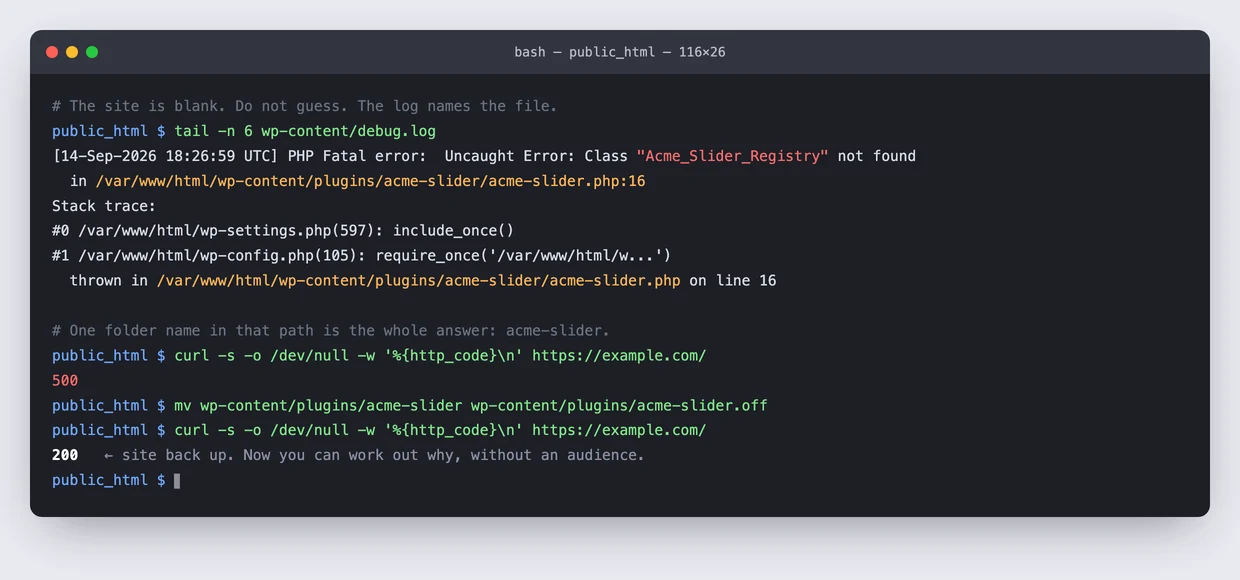
You do not need to understand the stack trace. You need one thing from it: the path after the words “thrown in”. If it contains wp-content/plugins/something/, then something is your problem. If it contains wp-content/themes/, it is the theme. If the path is inside wp-includes or wp-admin and mentions no plugin at all, the core files themselves are damaged, and reinstalling WordPress core is the fix. Downloading a fresh copy and replacing wp-admin and wp-includes leaves your content alone, because none of it lives there.
The five things that actually break
After enough of these calls you stop being surprised. Almost every post-update failure is one of five things, and the log tells you which within about four seconds.
A plugin that was not ready for the new core
This is the classic. WordPress ships a release, something inside it changes, and a plugin that relied on the old behaviour falls over. This is not a rare edge case. WordPress 6.9 landed in December 2025 and the WooCommerce team shipped a patch release ten days later whose notes describe a “Product Editor crash on WordPress 6.9”, where the editor “would crash with a JavaScript error” until deprecated editor code was removed. That is the biggest ecommerce plugin in the world, with a dedicated compatibility team, and it still needed two dot releases to catch up. Your slider plugin from 2021 has no such team.
The log gives you an undefined function, a missing class, or a call to something that no longer exists. Deactivate the plugin, check whether an update for it is waiting, and if there is one, install it. A surprising number of these fix themselves because the developer shipped a compatibility release the same week.
Two plugins, one theme, and a three-way argument
Sometimes nothing is individually broken. The combination is. A WoodMart theme user hit this the day after WordPress 6.9 shipped:
After updating some product links throws “500 internal server error”.
mrkapable007, XTemos support forum, December 2025
It only happened with Elementor switched on, on a site running WooCommerce and the WoodMart theme after the 6.9 update. Core, WooCommerce, Elementor and the theme all needed to agree, and for two days they did not. The theme vendor shipped a patch, the user applied it, and the site was fine again. There is no way you could have reasoned your way to that from the error message alone. The route through it is the boring one: disable things until the site works, then re-enable one at a time until it stops.
PHP running out of memory
An update makes the plugin bigger, the bigger plugin needs more memory, and your host’s limit has not moved since 2019. The error says “Allowed memory size of 134217728 bytes exhausted”, which is 128MB. This one shows up constantly and it looks exactly like a broken plugin, right up until you read the log. Two people described it within weeks of each other:
After updating a plugin, my WordPress website is now showing a completely white screen on both the front end and wp-admin.
gracewilliamsseo, WordPress.com forums, January 2026
I upgraded wordpress to 7.1 yesterday and the site crashed with a critical error.
evilned, WordPress.org support forum, August 2026
The first of those had already cleared the cache and disabled plugins over FTP before anyone suggested it. The answer was in the hosting error log, which pointed at PHP memory limits. The second poster worked through their plugins one by one, found the site died whenever Jetpack came back on, and reported an out of memory error behind it. Raising the limit to 256MB was the fix, and Jetpack activated without complaint afterwards. You can raise it yourself in wp-config.php with define( 'WP_MEMORY_LIMIT', '256M' );, though on shared hosting the server may override you. If it does, your host has to lift it, and that is a two-line support ticket rather than a crisis.
A half-finished update that never cleaned up
Before it unpacks anything, WordPress writes a file called .maintenance in your site root and shows visitors “Briefly unavailable for scheduled maintenance. Check back in a minute.” It deletes that file when the update finishes. If the update times out, dies, or the connection drops, nobody deletes it, and the site stays behind that message forever. Delete the file yourself. That is the entire fix, and it fools people for hours because it does not look like an error.
Nothing is broken, you are looking at a cache
Layouts that have collapsed, missing styling, a menu that renders as a bare list. An update changed a stylesheet or script filename and something in front of it is still serving yesterday’s copy. Clear your caching plugin, then your CDN, then your browser, in that order, and check again in a private window. It is worth ruling this out before you start renaming folders, because it costs thirty seconds.
One case does not belong on this list at all. If the front end is completely white with no message, no critical error box and nothing in the log, you have a different beast, and we wrote a separate piece on a blank page that gives you nothing to work with.
Recovery mode: the back door WordPress already emailed you
Since version 5.2, WordPress has caught fatal errors instead of letting them white-screen the site. When one happens, the address in your admin settings gets an email about it carrying, in the words of the core team’s announcement, “a secret link to new feature called the ‘recovery mode’”.
Click that link and you get the dashboard, working, with the offending plugin paused for you and nobody else. Visitors still see the error, but you can now deactivate the plugin properly, install an update for it, or change the theme, all through the normal admin screens. You do not need an SFTP client to do any of it.
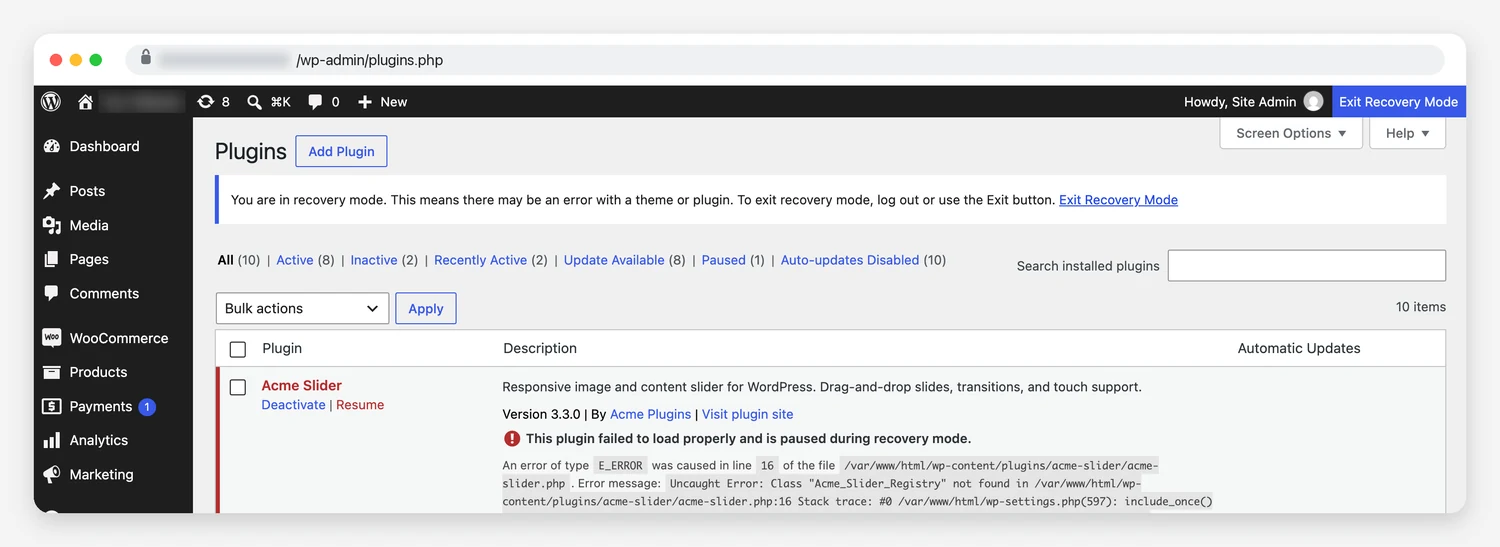
Two things stop people using it. The first is that the email goes to whatever address is in Settings then General, which on plenty of sites is a developer who left in 2022 or a webmaster@ alias nobody reads. Go and check yours now, while the site is calm. The second is that the link expires after a day. If yours has, trigger the error again by visiting the broken page and WordPress sends a fresh one.
Putting a plugin back to the version that worked
Deactivating a plugin fixes the crash and breaks whatever the plugin did. If it runs your forms, your gallery or your checkout, you need it back, just one version older.
- For anything from the WordPress.org directory, the WP Rollback plugin adds a Rollback link next to each plugin and lets you pick an older release from a list. It takes about twenty seconds and it is the cleanest route.
- For a commercial plugin, log into the developer’s account area and download the previous version’s zip. Deactivate and delete the broken one, then upload the older zip through Plugins, Add New, Upload Plugin. Deleting does not touch its settings.
- Whichever route you take, turn off auto-updates for that plugin afterwards. Otherwise WordPress will helpfully reinstall the version that broke your site, possibly tonight.
Then tell the developer. Support forums are how compatibility bugs get found, and the fix you get back also lands for everyone else running the same combination.
What core protects you from, and what it does not
WordPress has quietly built a safety net over the last few releases, and it is genuinely good. It is also narrower than most people assume, which matters if you have switched auto-updates on and gone to sleep.
Version 6.3 added a temporary backup during manual plugin and theme updates, so a download that fails or a folder that will not move no longer leaves you with half a plugin. The announcement is explicit about the limit, though. That backup will “NOT be used to ‘roll back’” a plugin or theme “to a previous version after a successful update”. If the files land correctly and then the plugin fatals when it runs, that feature does nothing for you.
Version 6.6 went further and added a real rollback for automatic plugin updates. After it updates a plugin, WordPress loads a page and looks for a fatal error. If it finds one, it restores the previous version and emails you to say so. We went and read that code in WordPress 7.1 to see exactly what it checks.
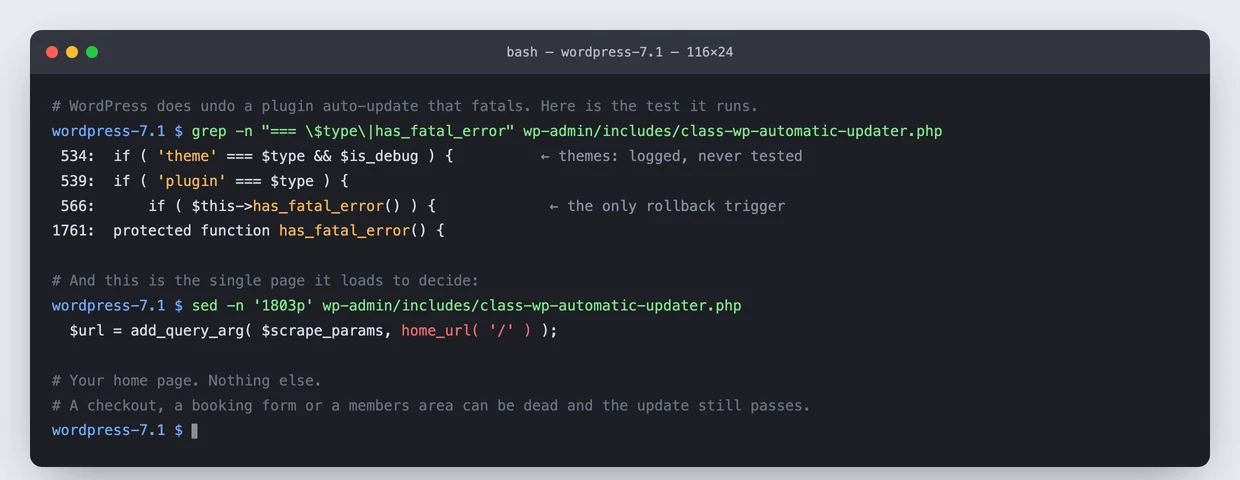
home_url( '/' ).One page. Your home page. If the update kills your checkout, your booking form, a members area or any single template that is not the front page, the check comes back clean and the update stands. Themes are not tested at all; core logs that a theme was upgraded and moves on. Core updates are outside this system entirely.
| Scenario | Does WordPress undo it for you? |
|---|---|
| Manual plugin update fails mid-install | Yes, since 6.3. The previous version is restored automatically. |
| Plugin auto-update fatals on the home page | Yes, since 6.6. Previous version restored, and you get an email. |
| Plugin auto-update fatals only on checkout or another inner page | No. The home page loads fine, so the update is judged successful. |
| Theme update breaks the site | No. Theme updates are not tested for fatal errors. |
| Core update breaks the site | No. You restore from a backup or fix it by hand. |
| Update works, but the layout collapses | No. Nothing fatals, so nothing triggers. |
None of this is a criticism of core. A loopback request to one page is a sensible, cheap test, and it saves a lot of sites. It just is not the same thing as somebody checking that your store still takes money.
Turning updates off is the more expensive mistake
After a bad night, the obvious conclusion is to stop updating. Every site owner reaches it eventually, usually at around 2am. It is the one decision here that reliably ends worse than the problem it solves.
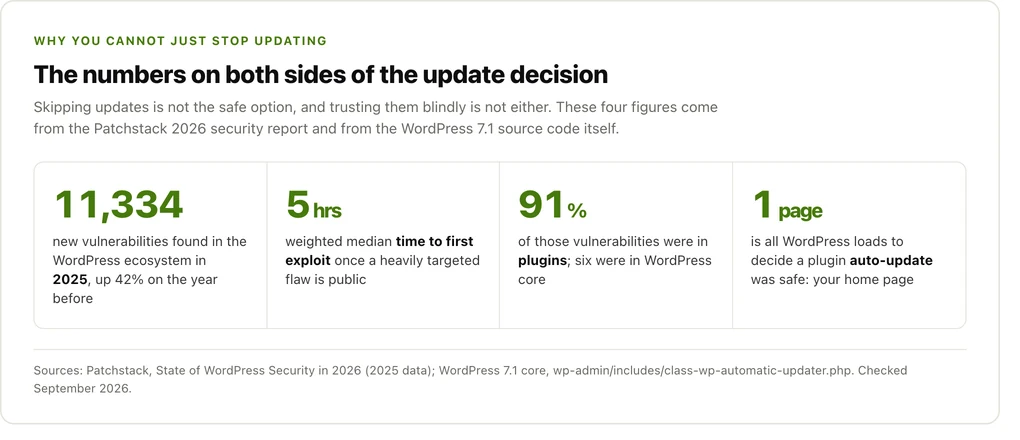
Patchstack counted 11,334 new vulnerabilities across the WordPress ecosystem in 2025, up 42% on the year before, with 91% of them in plugins and six in core. Their weighted median time to first exploit, for the flaws attackers care about, is five hours. Not five days. The gap between a patch appearing and someone scanning the internet for sites that have not applied it is an afternoon.
So the answer is not fewer updates. It is updates that happen somewhere safe first. That is what the rest of this piece is about, and it is most of what a monthly care plan pays for.
How to make the next update boring
Everything below is cheap, and each item on its own would have prevented most of the forum posts quoted in this article.
Take a backup you have restored at least once. An untested backup is a belief, not a plan. Run a restore onto a staging site, watch the site come back, and now you know. Keep the copy somewhere other than the server too, because a backup sitting on the machine that just died is not much use to you.
Update on a copy, not on the live site. Most decent hosts create a staging clone in one click now. Apply the updates there, click through the pages that earn money, and only then push to production. This is the single change that moves you from reacting to updates to ignoring them, and it is why we stage and test every update before it touches a live site rather than clicking Update All and hoping.
Go in batches. Core first, then the theme, then plugins a few at a time, with a look at the site in between. If ten things update together and the site dies, you have ten suspects and no evidence. Three at a time leaves you with three.
Be selective about auto-updates. Auto-updates are the right call for core security releases and for well-maintained plugins. They are wrong for a page builder, a checkout extension or anything with custom code bolted onto it. What you want to avoid is the situation this person woke up to:
Running Version 3.2.5 and my site went down with the dreaded “WordPress Critical Error” after what I am assuming was an auto-update of the plugin.
Randy King, WordPress.org support forum
The plugin was WP-Optimize, and 3.2.5 shipped with a PHP syntax error in one of its admin files. The developers’ answer in that thread was to drop back to 3.2.3 and leave auto-updates off until they had a corrected build out. Nobody did anything wrong here. A bad release got out, and the sites configured to trust it went down without being asked.
Two smaller habits round it off. Run updates when you can watch the site for an hour afterwards and when whoever fixes your site is awake, which quietly rules out Friday evening. And once a year, look at two settings: the admin email address under Settings then General, and your PHP memory limit. Those two decide whether the next fatal error is a ten-minute inconvenience or a whole evening.
When to stop and hand it over
Doing it yourself is the right call more often than not. There are a few points where it stops being the right call, and knowing them in advance saves you from the 1am decision.
- Every plugin is off, the theme is a default one, and the site is still down. Something is wrong below WordPress, in PHP, the database or the server.
- The log points at
wp-includesor a database error, and reinstalling core changed nothing. - The site is a shop and the checkout is the part that broke. Every hour has a price you can calculate.
- You have no backup, no staging copy and no file access, and you are about to start experimenting on the live site.
- The site came back but something is off. Strange redirects, pages you did not write, admin users you do not recognise. That is not a bad update. An unpatched plugin is the most common way in, so at that point you want someone who cleans infected sites, not someone who fixes updates.
Site still down?
Send us the URL and what you last updated. We look first and quote after, so you know what is wrong before you commit to anything. If it turns out to be a ten-minute fix, we will tell you that too.
Frequently asked questions
Why did my WordPress site break after an update?
Nearly always because a plugin or theme was not compatible with what changed. A plugin calls a function that the new WordPress release removed, or two plugins that both updated now disagree. Less often it is PHP running out of memory, an update that died halfway through, or a cached stylesheet. The error log names which of these it was, usually in one line.
How do I fix “There has been a critical error on this website”?
Open wp-content/plugins/ through your host’s file manager or SFTP and rename the folder of the plugin you last updated, adding .off to the name. That deactivates it and the site should load. If you do not know which plugin it was, rename the whole plugins folder, confirm the site comes back, rename it again, then reactivate plugins one at a time. Check the admin email too: WordPress sends a recovery mode link that names the plugin for you.
Can I roll a plugin back to the previous version?
Yes. For plugins from the WordPress.org directory, install WP Rollback, then use the Rollback link that appears next to the plugin and choose an earlier release. For commercial plugins, download the older zip from the developer’s account area, delete the current version, and upload the old one. Deleting a plugin does not delete its settings, which live in the database. Turn off auto-updates for that plugin afterwards or WordPress will reinstall the broken version.
Does WordPress automatically undo an update that breaks my site?
Only in narrow circumstances. Since 6.3 it restores a plugin or theme if the installation itself fails. Since 6.6 it also restores a plugin whose automatic update causes a fatal error, but it decides that by loading one page, your home page. An update that breaks a checkout page, a booking form or the dashboard while the home page still loads is treated as successful. Theme updates and core updates are not covered at all.
Should I turn off automatic updates?
Not entirely. Patchstack recorded 11,334 new WordPress vulnerabilities in 2025 with a median time to first exploit of five hours, so an unpatched site is exposed quickly. Leave automatic updates on for core security releases and for plugins with a good track record. Switch them off for page builders, ecommerce extensions and anything that has been customised, and update those by hand on a staging copy.
My site says “Briefly unavailable for scheduled maintenance”. How do I clear it?
Delete the file named .maintenance from your WordPress root folder, the same place as wp-config.php. WordPress creates it at the start of an update and removes it at the end; if the update crashed in between, the file is left behind and the message never goes away. It begins with a dot, so enable hidden files in your file manager to see it.
Will I lose my posts, pages or products?
No. All of that lives in the database, and updates do not touch it. Uploads live in wp-content/uploads and are also untouched. Even reinstalling WordPress core is safe as long as you replace only wp-admin, wp-includes and the root files, and leave wp-content and wp-config.php alone. The one way to lose content is restoring an old backup over a site that has taken orders or comments since the backup was made.
How long should I wait before installing a new WordPress release?
Install security releases immediately; they are small and targeted. For a major release, a week or two is reasonable while plugin developers publish their compatibility updates, and waiting a fortnight after 6.9 shipped in December 2025 would have cost most sites nothing. Waiting is only safe if you are watching, and the wait should never stretch into months.
What if the site is still broken with every plugin disabled?
Switch to a default theme by renaming your theme’s folder in wp-content/themes/. If it is still down after that, WordPress is no longer the problem. Look at core file damage, which a manual reinstall fixes, at the PHP version your host has set, or at a database connection error. Those need server access, and at that point handing it to someone with the access is faster than working through it by trial and error.
Why does my host say the update worked when the site is clearly down?
Because installing the files and running them are different things. An update can unpack perfectly and still fatal the moment WordPress loads the plugin. That is also the gap WordPress core’s own rollback leaves open: it checks that the home page still loads, not that the site works. The error log records what happened when the code ran, which is why it is the first thing to read.