You load your site and get nothing. No error, no message, just a blank white page. That is the WordPress White Screen of Death, and behind almost every case is a single event: PHP hit a fatal error and stopped before it could print anything.
The blank screen feels like the whole site is gone. It usually isn’t. In our support queue, the White Screen of Death is one of the most common tickets we take, and the large majority trace back to seven causes. Work through them in order and most sites come back within the hour.
This guide gives you the seven causes and the exact fix for each, including the commands. Real complaints from the WordPress forums are quoted along the way, because if you are staring at a blank screen right now, it helps to know you are not the first.
TL;DR
| What is it? | A blank page caused by a PHP fatal error that stops WordPress before it renders anything. |
| Most common cause? | A plugin conflict or a bad plugin update. |
| First move if you can log in | Deactivate all plugins, then switch to a default theme. |
| First move if you can’t | Via FTP or file manager, rename /wp-content/plugins to plugins_old. |
| Business site down? | Restore the last good backup first, then diagnose on a staging copy. |
| Can’t fix it fast? | Get emergency WordPress support, from $97, no fix no charge. |
What the White Screen of Death actually is
WordPress runs on PHP. When PHP meets an error it cannot recover from, a “fatal error,” it halts. If it halts before any HTML reaches the browser, you get a white page instead of your site. Sometimes you also see a short line like “There has been a critical error on this website,” or an HTTP 500. Often you get nothing at all.
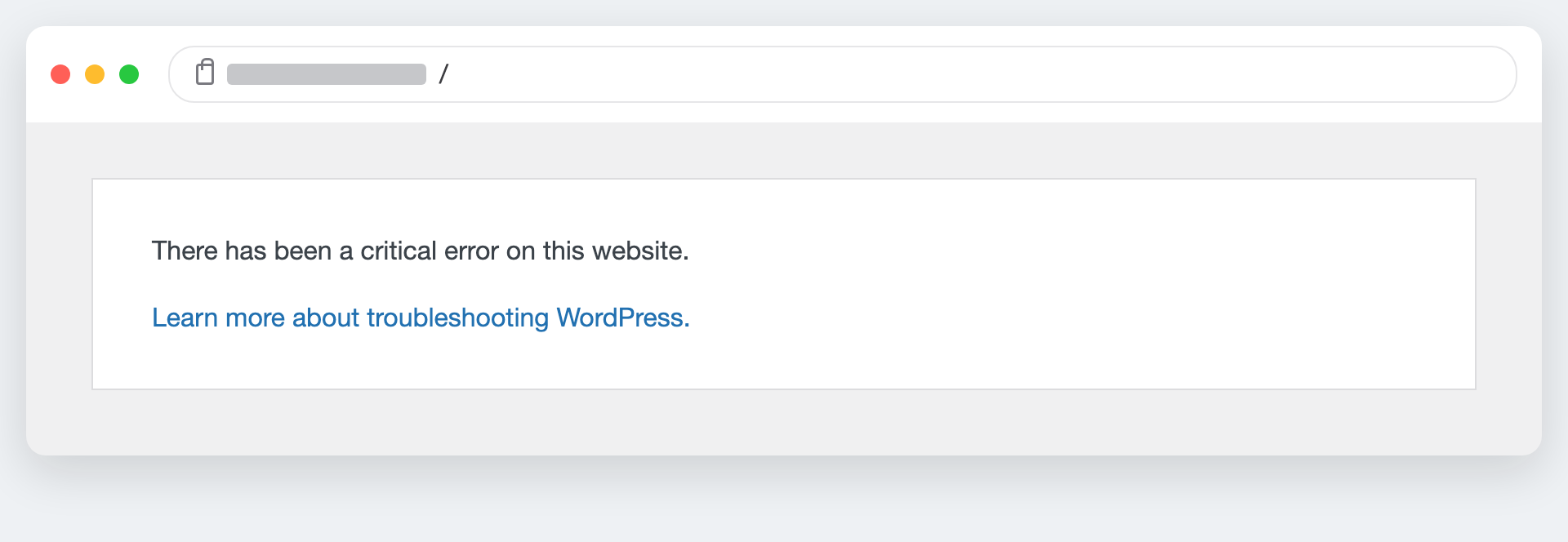
The blank part is what makes it stressful. There is no clue on the screen, so it feels random. It isn’t. Turn on WordPress debugging (covered below) and the same blank page will usually name the exact file and line that broke.
“…showing a completely white screen on both the front end and wp-admin… PHP errors related to memory limits.”
gracewilliamsseo, describing a White Screen of Death after a plugin update, WordPress.com support forums
That quote is a textbook case, and it points at two of our seven causes at once: a plugin update, and a memory limit. Here is the full list.
Before you touch anything.
If your site earns money, take a fresh backup now (files and database), or copy the one your host made this morning somewhere safe. Every fix below is reversible, but only if you can roll back. If the site is fully down and every lost hour costs sales, restoring a clean backup first is often the fastest route to “open again,” and you can hunt for the cause afterwards on a staging copy.
The 7 causes and how to fix each
1. A plugin conflict or a bad plugin update
This is the one we see most. A plugin update ships a bug, or two plugins disagree, and PHP dies. The tell is timing: the site was fine, you (or an auto-update) touched a plugin, and the screen went blank. On the WordPress.org forums the thread titles read like a pattern on their own, from “After Re-installing the Plugin website show blank white screen!” to “white screen of death with no dashboard.”
Fix.
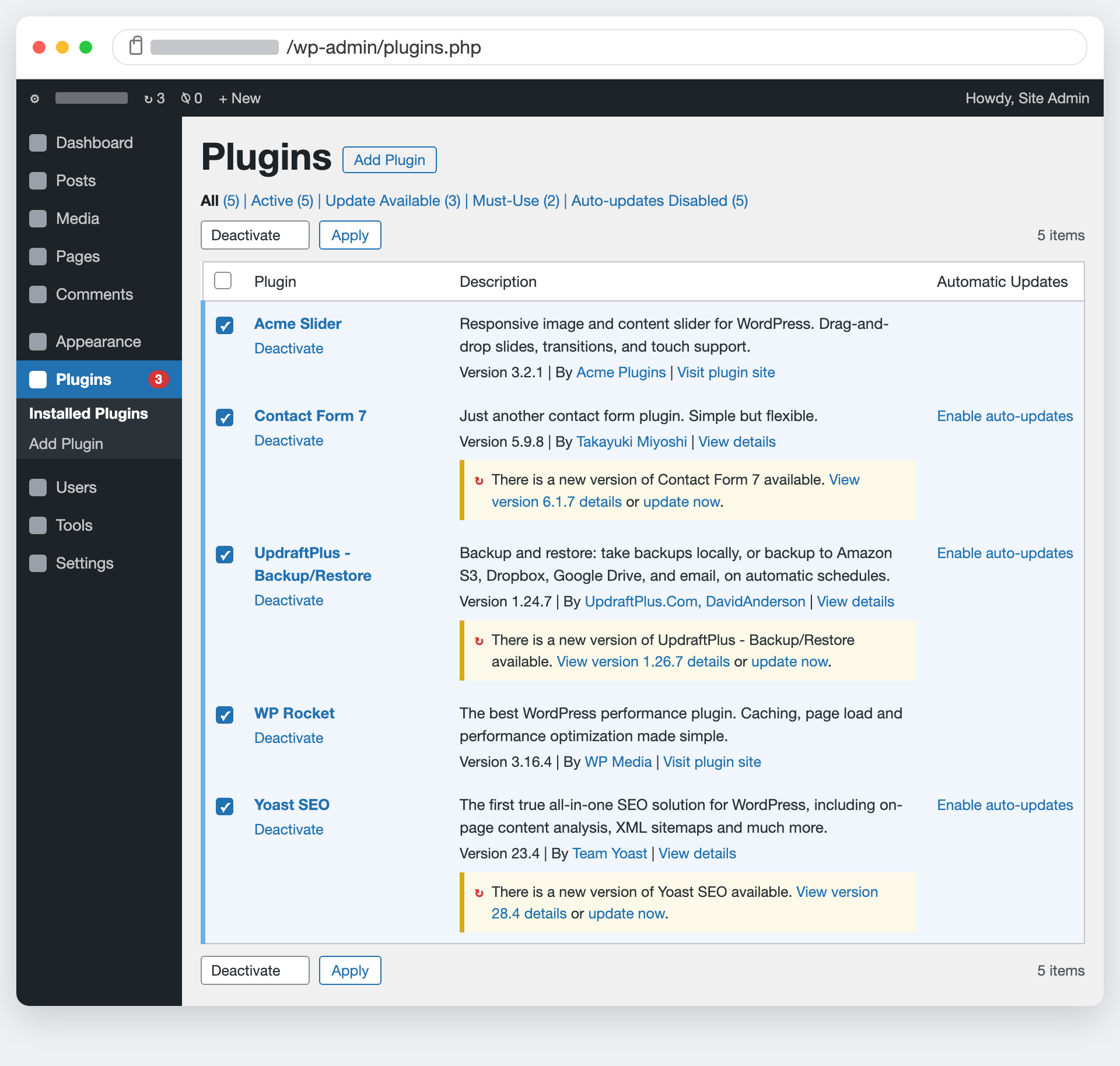
If you can log in, go to Plugins → Installed Plugins, select all, and choose Deactivate. If the site returns, reactivate them one at a time, reloading after each, until the screen blanks again. That last plugin is your culprit. If you cannot log in, do the same from the outside: connect over FTP or your host’s file manager and rename /wp-content/plugins to plugins_old. WordPress will drop every plugin and, if a plugin was the cause, load normally. Rename it back, then disable plugins one by one.
2. A broken or incompatible theme
Less common than plugins, but it happens after a theme update or a bad edit to a theme file. If deactivating plugins changed nothing, suspect the theme next.
Fix.
With dashboard access, go to Appearance → Themes and activate a default theme such as Twenty Twenty-Five. If the site loads, your theme is the problem. Without dashboard access, rename the active theme’s folder inside /wp-content/themes; WordPress falls back to a default theme automatically. If a child theme broke, the parent or a default theme will still get you back in.
3. PHP memory exhaustion
WordPress asks PHP for memory as it builds a page. When a plugin or theme wants more than the server allows, PHP stops. This is the cause in the forum quote above, and it is common on shared hosting, where the limit is often set low. WordPress defaults to a 128 MB limit, and heavier setups such as WooCommerce usually need 256 MB. According to the WordPress documentation, you can raise it in wp-config.php.
Fix.
Open wp-config.php and add this above the line that reads /* That’s all, stop editing! */:
define( 'WP_MEMORY_LIMIT', '256M' );Reload the site. If it returns, memory was the pinch point. If your host caps PHP memory below this and ignores the setting, the ceiling is on their side and they will need to lift it.
4. A PHP fatal or syntax error from a code edit
One stray character in functions.php, a pasted “snippet” from a blog, or an unclosed bracket will take the whole site down. If the screen went blank the instant you saved an edit, this is almost certainly it.
Fix.
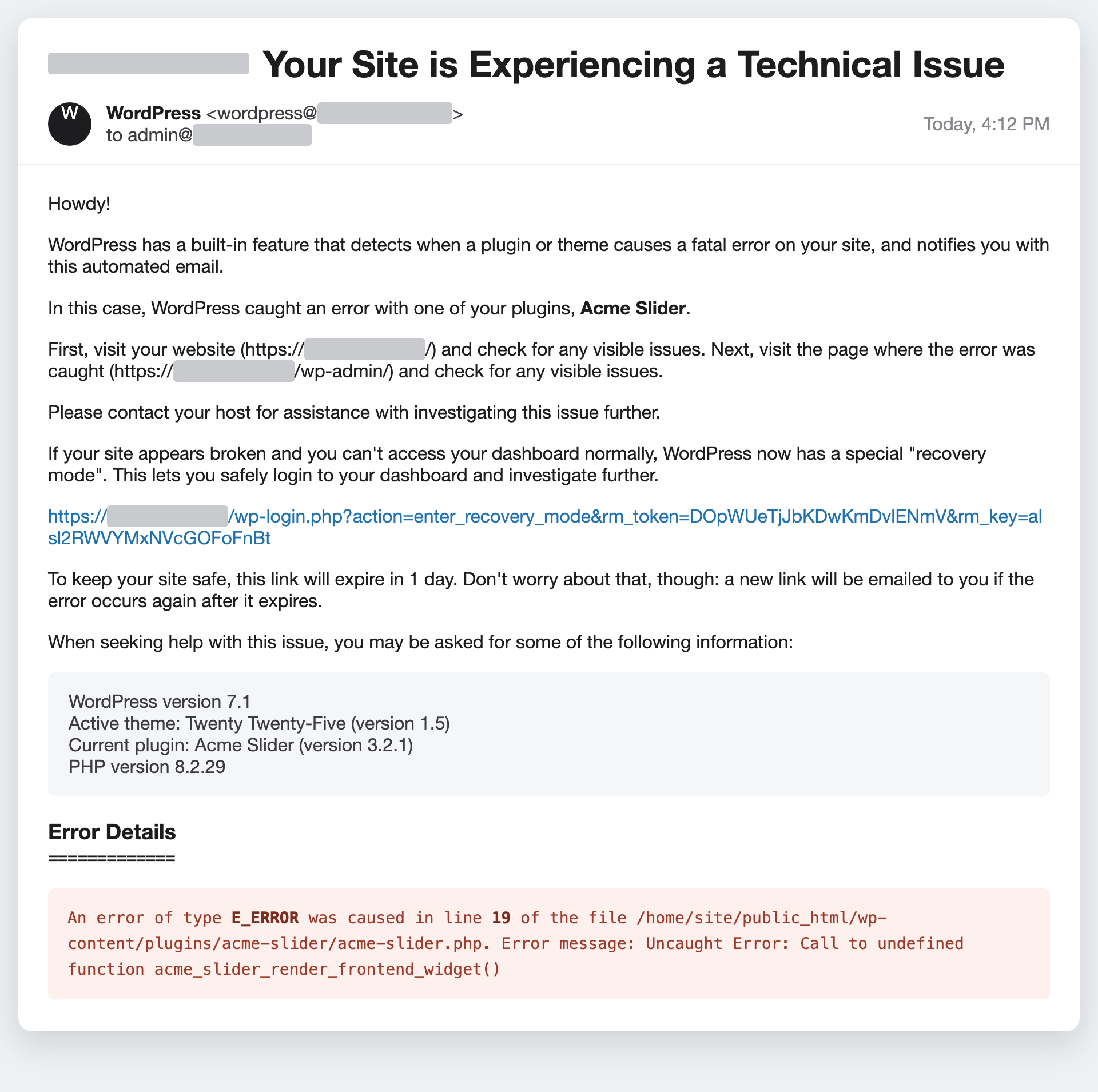
Undo the edit. Over FTP, open the file you changed and revert it, or restore the previous version. To see exactly what broke, turn on debugging (next section) and the blank page will name the file and line. Since WordPress 5.2, there is also Recovery Mode: WordPress emails the site admin a special link that logs you in with the broken plugin or theme paused, so you can fix it from the dashboard.
5. A failed or interrupted update
If a core update stalls, the connection drops, or two updates run at once, WordPress can get stuck in maintenance and show a blank or “briefly unavailable” page. It leaves a marker file behind.
Fix.
Over FTP, look in the site’s root folder for a file named .maintenance and delete it. Reload the site. If files were left half-updated, re-run the update from the dashboard, or reinstall WordPress core cleanly from Dashboard → Updates.
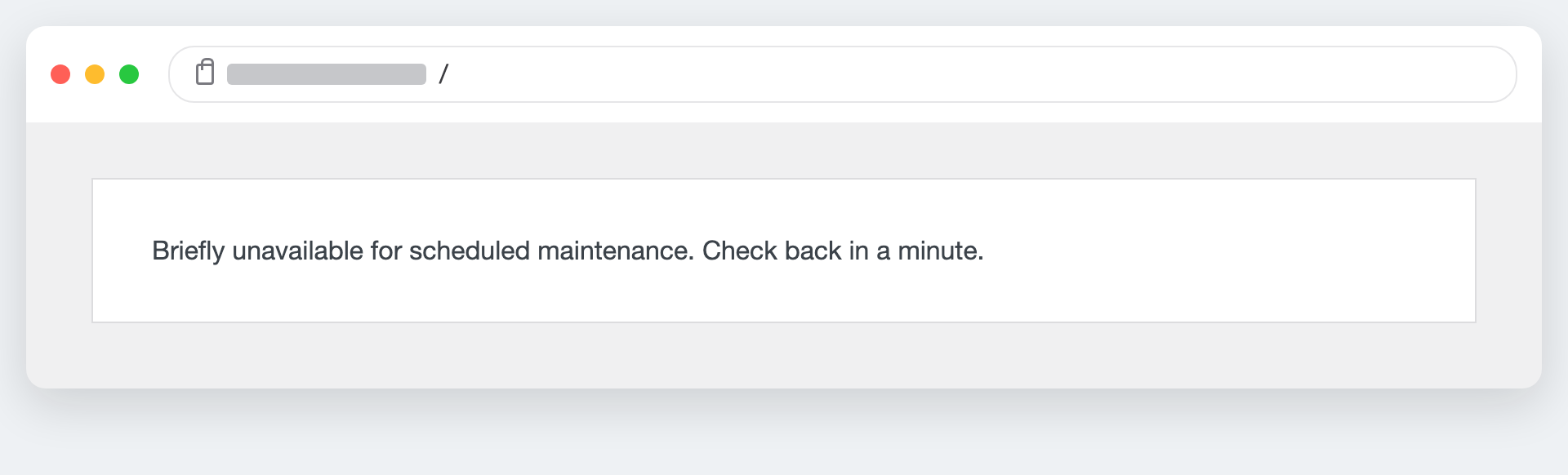
.maintenance file in the site root to clear it.6. A stale or broken cache
Sometimes you have already fixed the problem, but a cached copy of the broken page keeps showing. The giveaway is a mismatch: the site works for you but not for visitors, or it stays blank long after the real fix. Caches sit in several places at once, so a clear has to cover all of them.
Fix.
Clear, in this order: your page-cache plugin (WP Rocket, LiteSpeed, W3 Total Cache), your CDN (Cloudflare “Purge Everything”), your host’s server cache, and finally your own browser. Then load the site in a private window to confirm you are seeing the live version, not a saved one.
7. A server or hosting issue
When plugins, theme, memory, and code all check out, the problem is under the site. The usual suspects are a PHP version the site is not ready for, a corrupted .htaccess, or file permissions that block WordPress from reading its own files.
Fix.
Check your host’s error log first, since a server-side fatal error is written there even when the page is blank. Confirm the PHP version matches what your plugins and theme support (PHP 8.1 or newer is a safe modern target). Regenerate .htaccess by renaming the old one and re-saving permalinks in Settings → Permalinks. Set file permissions to files 644, folders 755, and wp-config.php 600 or 640. If the error log points at the server itself, your host owns the fix.
How to read the actual error (turn on debugging)
Guessing is slow. WordPress will tell you what broke if you ask it to. Open wp-config.php and add these three lines above /* That’s all, stop editing! */:
define( 'WP_DEBUG', true );
define( 'WP_DEBUG_LOG', true );
define( 'WP_DEBUG_DISPLAY', false );
This writes errors to /wp-content/debug.log without showing them to visitors. Reload the blank page, then open debug.log. The last “Fatal error” line names the file and line number, which usually points straight at the guilty plugin, theme, or edit. The full detail lives in the WordPress debugging guide. When you are done, set these back to false so you are not logging on a live site.
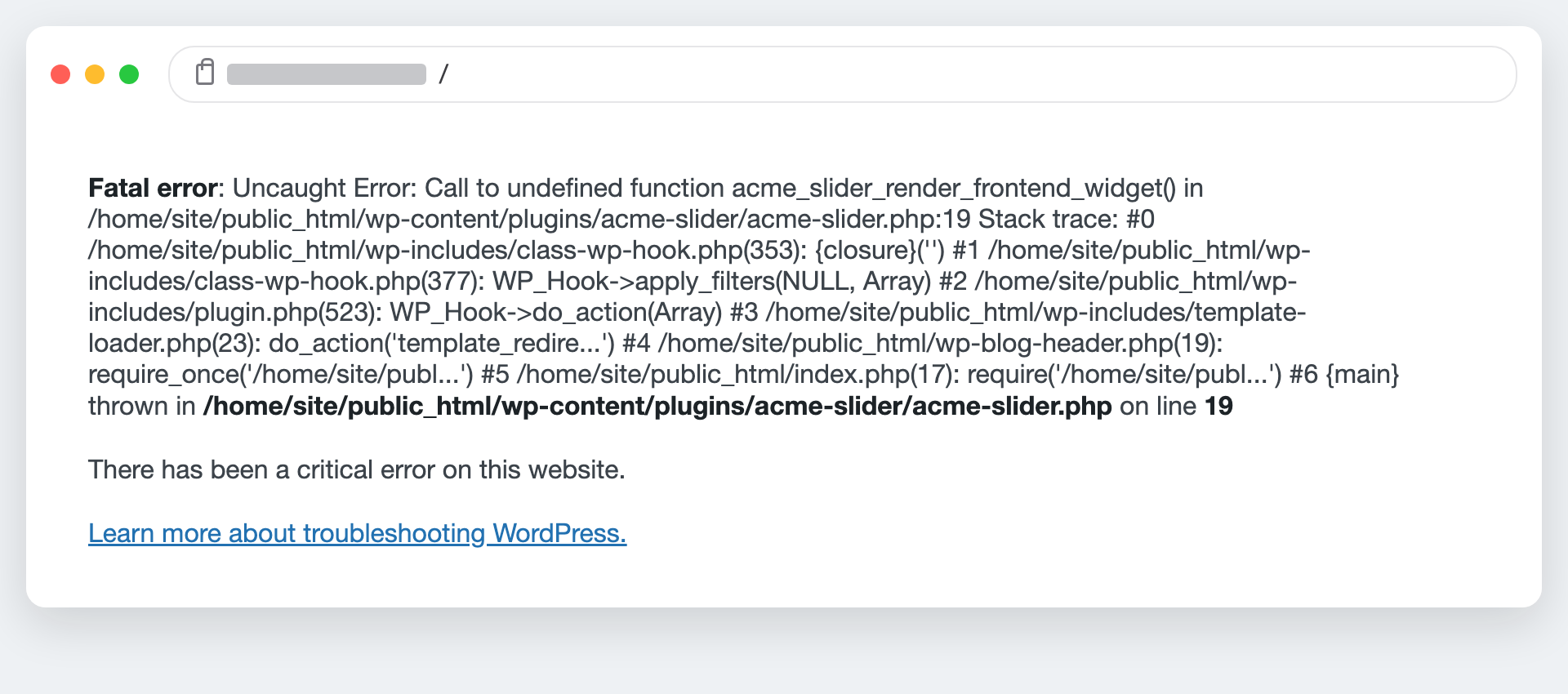
WP_DEBUG_DISPLAY to true to print it like this: the fatal error names the exact plugin, file, and line. Keep it logging to a file, not on screen, on a live site.The mistakes that turn a 20-minute fix into a bad day
- Editing the live site with no backup. The fix for one cause can create another. Always keep a way back.
- Leaving
WP_DEBUG_DISPLAYon. Printing errors to the screen on a live site leaks paths and can expose more than the blank page did. - Assuming it is a hack. A blank screen is almost always a code or memory error, not an attack. But if you also see spam pages, strange redirects, or a Google warning, treat it as a security incident and start with our WordPress malware removal service.
- Raising memory to a huge number to “be safe.” If 256 MB does not fix it, memory was not the cause. Setting 2 GB just hides the real one.
- Fixing it and never asking why. A White Screen of Death is a symptom. If a plugin update did it once, an untested update will do it again.
How to stop it happening again
Most of the tickets we clear had a common root: an update went straight to the live site with nothing to catch it. The prevention is boring and it works.
- Test plugin, theme, and core updates on a staging copy first, then push what passes.
- Take an automated backup before every update, so a bad one is a one-click roll back, not a rescue mission.
- Keep PHP current and memory at 256 MB, so nothing is running on the edge.
- Watch uptime, so an alert tells you the site is down before a customer does.
That is exactly what a WordPress maintenance plan handles for you: staging-tested updates, a backup before each one, and a human who checks the site rather than trusting auto-updates to behave. Care plans start at $49 a month. If speed is also part of the problem, an overloaded site that runs out of memory is often a speed and resource issue underneath.
Site down right now and the clock is running?
Send us the URL and what you last changed. Our emergency desk can diagnose the blank screen and get you live again, from $97, one-time. If we can’t fix it, you don’t pay.
Get emergency supportMessage us on WhatsAppFrequently asked questions
Is the White Screen of Death permanent? Have I lost my site?
Almost never. Your files and database are still there. The blank page means PHP stopped rendering, not that the site was deleted. In most cases deactivating plugins, switching the theme, or raising the memory limit brings it straight back.
Why does my front end show a blank page but wp-admin still works?
That split usually points at the active theme or a front-end-only plugin, since the admin loads a different set of code. Switch to a default theme first, then disable plugins that only run on the front end.
I have a white screen and no dashboard at all. What now?
Go around WordPress. Connect over FTP or your host’s file manager and rename /wp-content/plugins to plugins_old. If that does not help, rename the active theme folder. Then read /wp-content/debug.log and your host’s error log to find the fatal error.
How do I fix the white screen after a plugin update specifically?
Deactivate the plugin you just updated. From the dashboard, deactivate it on the Plugins screen; without a dashboard, rename its folder inside /wp-content/plugins. Then check whether the new version needs a newer PHP version than your host runs, which is a frequent trigger.
Will increasing the PHP memory limit fix it?
It will if memory exhaustion was the cause, which is common on shared hosting. Add define( 'WP_MEMORY_LIMIT', '256M' ); to wp-config.php. If 256 MB changes nothing, the cause is elsewhere and a bigger number will not help.
Does a white screen mean my site was hacked?
Usually not. It is far more often a plugin, theme, memory, or code error. Treat it as security only if you also see injected spam, redirects to other sites, or a “this site may be hacked” warning in Google.
How long does it take to fix?
For a routine plugin or memory cause, often 15 to 30 minutes once you can read the error. A corrupted core, a server misconfiguration, or a site you cannot safely take offline takes longer, which is when it is worth handing to a support desk.